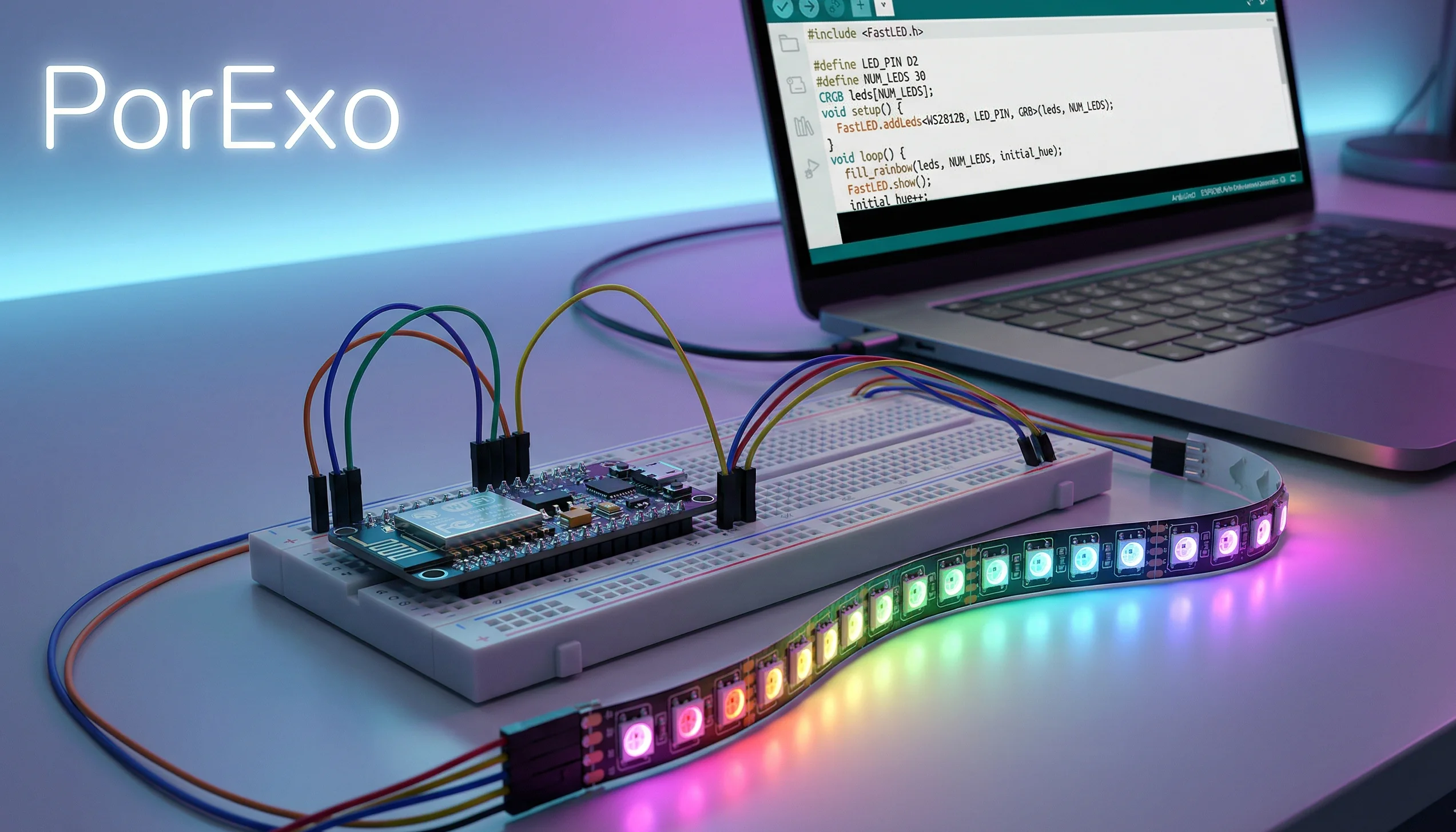
If you want to program WS2812B LED with ESP8266 and add WiFi, OTA update, MQTT control, and a web interface, follow this complete upgraded code guide...
Hey there! So you've already got your ESP8266 board blinking some basic LEDs. Now let's take it to the next level. In this upgraded guide, we'll add Wi-Fi control, Over-the-Air (OTA) firmware updates, MQTT command support, and a simple web server — all in one single sketch. It sounds complex, but we'll walk through every step together!
Handy Tools For You
What You'll Need
- An ESP8266 board (NodeMCU or Wemos D1 Mini).
- A WS2812B LED strip (any length).
- A separate 5V power supply rated for your strip (not from the ESP8266 pin).
- Jumper wires to connect everything.
- A 470-ohm resistor on the data line (recommended to protect the first LED).
- A 1000µF electrolytic capacitor across the 5V and GND at the strip start (optional but helpful).
- Arduino IDE with ESP8266 board support already installed.
Step 1: Install the Required Libraries
This upgraded sketch uses three key libraries. Install all of them before uploading the code.
- Go to Sketch > Include Library > Manage Libraries…
- Search for "WS2812FX" and install it. This library gives you dozens of built-in LED effects like rainbow, strobe, fire, and more.
- Search for "PubSubClient" and install it. This handles MQTT communication.
- ArduinoOTA comes pre-installed with the ESP8266 core — no extra steps needed.
Step 2: Wiring It Up
Be careful with connections! Incorrect wiring can damage your components.
- Power (5V): Connect 5V from your external supply to the
+or5Vpad on the LED strip. Do NOT use the ESP8266's 5V pin for more than a few LEDs. - Ground (GND): Connect GND from the supply to the
-pad on the strip. Also connect this GND to the GND pin on your ESP8266. This common ground is critical. - Data (Din): Connect the
DATA_PINdefined in the code (default D4 / GPIO2) to theDinpad on the strip. Put a 470-ohm resistor in series on this wire, right next to the first LED.
Power Tip: Each WS2812B draws up to 60mA at full white brightness. For 30 LEDs, budget at least 2A. For 60 LEDs, at least 4A. Use a supply with 20% extra headroom. For strips longer than 1 metre, inject 5V power at both ends.
Step 3: The Complete Upgraded Code
This single sketch handles everything — LED effects, Wi-Fi connection, OTA updates, MQTT commands, and a tiny web page for manual control. Copy and paste this into a new sketch in your Arduino IDE.
#include <ESP8266WiFi.h>
#include <ESP8266mDNS.h>
#include <WiFiUdp.h>
#include <ArduinoOTA.h>
#include <PubSubClient.h>
#include <WS2812FX.h>

// ──────────────────── USER SETTINGS ────────────────────
#define LED_PIN        D4           // Data pin (GPIO2 on NodeMCU)
#define LED_COUNT      30           // Number of LEDs in your strip
#define WIFI_SSID      "YOUR_SSID"
#define WIFI_PASSWORD  "YOUR_PASSWORD"

#define MQTT_SERVER    "192.168.1.100"  // Your MQTT broker IP
#define MQTT_PORT      1883
#define MQTT_USER      ""           // Leave blank if no auth
#define MQTT_PASS      ""           // Leave blank if no auth
#define MQTT_CLIENT_ID "ESP8266_LED"

#define TOPIC_POWER    "home/led/power"
#define TOPIC_EFFECT   "home/led/effect"
#define TOPIC_COLOR    "home/led/color"
#define TOPIC_BRIGHT   "home/led/brightness"
// ────────────────────────────────────────────────────────

WS2812FX ws2812fx = WS2812FX(LED_COUNT, LED_PIN, NEO_GRB + NEO_KHZ800);
WiFiClient   espClient;
PubSubClient mqttClient(espClient);
WiFiServer   webServer(80);

bool     powerOn    = true;
uint8_t  effectIdx  = 0;
uint32_t color      = 0xFF0000;  // Default: Red
uint8_t  brightness = 128;

unsigned long lastMQTTReconnectAttempt = 0; // For non-blocking MQTT

void mqttCallback(char* topic, byte* payload, unsigned int len);
void reconnectMQTT();

// ═══════════════════════════════════ SETUP ════════════════════════════════════
void setup() {
  Serial.begin(115200);
  Serial.println("\n=== WS2812B Upgraded Sketch ===");

  // --- LED Init ---
  ws2812fx.init();
  ws2812fx.setBrightness(brightness);
  ws2812fx.setSpeed(100);
  ws2812fx.setMode(effectIdx);
  ws2812fx.setColor(color);
  ws2812fx.start();

  // --- Wi-Fi ---
  WiFi.mode(WIFI_STA);
  WiFi.begin(WIFI_SSID, WIFI_PASSWORD);
  Serial.print("Connecting to WiFi");
  while (WiFi.status() != WL_CONNECTED) { delay(500); Serial.print("."); }
  Serial.println("\nConnected! IP: " + WiFi.localIP().toString());

  // --- mDNS (access via esp8266-led.local) ---
  if (MDNS.begin("esp8266-led")) Serial.println("mDNS started");

  // --- OTA ---
  ArduinoOTA.setHostname("esp8266-led");
  ArduinoOTA.onStart([]()  { Serial.println("OTA Start"); });
  ArduinoOTA.onEnd([]()    { Serial.println("\nOTA End"); });
  ArduinoOTA.onProgress([](unsigned int p, unsigned int t) {
    Serial.printf("OTA Progress: %u%%\r", (p * 100) / t);
  });
  ArduinoOTA.onError([](ota_error_t e) {
    Serial.printf("OTA Error[%u]: ", e);
    if      (e == OTA_AUTH_ERROR)    Serial.println("Auth Failed");
    else if (e == OTA_BEGIN_ERROR)   Serial.println("Begin Failed");
    else if (e == OTA_CONNECT_ERROR) Serial.println("Connect Failed");
    else if (e == OTA_RECEIVE_ERROR) Serial.println("Receive Failed");
    else if (e == OTA_END_ERROR)     Serial.println("End Failed");
  });
  ArduinoOTA.begin();
  Serial.println("OTA ready");

  // --- MQTT ---
  mqttClient.setServer(MQTT_SERVER, MQTT_PORT);
  mqttClient.setCallback(mqttCallback);

  // --- Web Server ---
  webServer.begin();
  Serial.println("Web server started");
}

// ═══════════════════════════════════ LOOP ════════════════════════════════════
void loop() {
  ArduinoOTA.handle();
  ws2812fx.service();

  // Non-blocking MQTT Reconnect
  if (!mqttClient.connected()) {
    if (millis() - lastMQTTReconnectAttempt > 5000) {
      lastMQTTReconnectAttempt = millis();
      reconnectMQTT();
    }
  } else {
    mqttClient.loop();
  }

  // Web server handler
  WiFiClient client = webServer.available();
  if (client) {
    String request = client.readStringUntil('\r');
    client.flush();

    if      (request.indexOf("/power?state=on")  != -1) { powerOn = true;  ws2812fx.start(); }
    else if (request.indexOf("/power?state=off") != -1) { powerOn = false; ws2812fx.stop();  }
    else if (request.indexOf("/effect?n=")       != -1) {
      effectIdx = request.substring(request.indexOf("n=") + 2).toInt();
      if (effectIdx >= ws2812fx.getModeCount()) effectIdx = 0;
      ws2812fx.setMode(effectIdx);
    }
    else if (request.indexOf("/bright?v=")       != -1) {
      brightness = constrain(request.substring(request.indexOf("v=") + 2).toInt(), 0, 255);
      ws2812fx.setBrightness(brightness);
    }

    // Clean HTML response using Raw String Literal
    String html = R"rawliteral(
      HTTP/1.1 200 OK
      Content-Type: text/html
      Connection: close

      <!DOCTYPE html>
      <html>
      <head>
        <meta name="viewport" content="width=device-width, initial-scale=1">
        <meta charset="utf-8">
        <style>
          body { font-family: Arial, sans-serif; text-align: center; margin: 40px; background: #222; color: #fff;}
          a { display: inline-block; padding: 12px 20px; margin: 8px; background: #007BFF; color: white; text-decoration: none; border-radius: 6px; font-weight: bold;}
          a.off { background: #DC3545; }
          a.on { background: #28A745; }
          h3 { margin-top: 30px; }
        </style>
      </head>
      <body>
        <h2>💡 ESP8266 LED Control</h2>

        <h3>Power</h3>
        <a href="/power?state=on" class="on">● ON</a>
        <a href="/power?state=off" class="off">○ OFF</a>

        <h3>Effects</h3>
        <a href="/effect?n=0">Static</a>
        <a href="/effect?n=1">Blink</a>
        <a href="/effect?n=8">Rainbow</a>
        <a href="/effect?n=10">Fire</a>

        <h3>Brightness</h3>
        <a href="/bright?v=50">Dim</a>
        <a href="/bright?v=128">Medium</a>
        <a href="/bright?v=255">Bright</a>
      </body>
      </html>
    )rawliteral";

    client.print(html);
    delay(1);
    client.stop();
  }
}

// ═══════════════════════════════ MQTT CALLBACK ═══════════════════════════════
void mqttCallback(char* topic, byte* payload, unsigned int len) {
  String msg = "";
  for (unsigned int i = 0; i < len; i++) msg += (char)payload[i];
  Serial.printf("MQTT [%s] -> %s\n", topic, msg.c_str());

  if (strcmp(topic, TOPIC_POWER) == 0) {
    if (msg.equalsIgnoreCase("ON"))  { powerOn = true;  ws2812fx.start(); }
    if (msg.equalsIgnoreCase("OFF")) { powerOn = false; ws2812fx.stop();  }
  }
  else if (strcmp(topic, TOPIC_EFFECT) == 0) {
    effectIdx = msg.toInt();
    if (effectIdx >= ws2812fx.getModeCount()) effectIdx = 0;
    ws2812fx.setMode(effectIdx);
  }
  else if (strcmp(topic, TOPIC_COLOR) == 0) {
    if (msg.startsWith("0x")) msg.remove(0, 2);
    if (msg.startsWith("#"))  msg.remove(0, 1);
    color = strtoul(msg.c_str(), nullptr, 16);
    ws2812fx.setColor(color);
  }
  else if (strcmp(topic, TOPIC_BRIGHT) == 0) {
    brightness = constrain(msg.toInt(), 0, 255);
    ws2812fx.setBrightness(brightness);
  }
}

// ═══════════════════════════════ MQTT RECONNECT ══════════════════════════════
void reconnectMQTT() {
  Serial.print("MQTT connecting...");
  if (mqttClient.connect(MQTT_CLIENT_ID, MQTT_USER, MQTT_PASS)) {
    Serial.println("connected");
    mqttClient.subscribe(TOPIC_POWER);
    mqttClient.subscribe(TOPIC_EFFECT);
    mqttClient.subscribe(TOPIC_COLOR);
    mqttClient.subscribe(TOPIC_BRIGHT);
  } else {
    Serial.printf("failed rc=%d, retry in 5s\n", mqttClient.state());
  }
}
Understanding the Code
#define LED_COUNT 30: Apni strip ke actual LED count se match karein.#define LED_PIN D4: Data pin D4 (GPIO2) use ho raha hai. Zaroorat ho to D2 ya D5 kar sakte ho.WS2812FX: Ek powerful library hai jisme 50+ built-in effects hain jaise rainbow, fire, strobe, etc.ArduinoOTA: Pehla upload USB se karo. Uske baad Arduino IDE mein Port → esp8266-led.local choose karke wirelessly update kar sakte ho.PubSubClient: MQTT broker se connect hota hai. Topics par messages publish karke strip control hoti hai.webServer.available(): Browser sehttp://<IP>/open karo aur buttons se control karo.
Step 4: Upload and Test
WIFI_SSID,WIFI_PASSWORD, aurMQTT_SERVERapni values se replace karo.- ESP8266 ko USB se connect karo. Arduino IDE mein sahi COM port select karo.
- Upload button (right arrow) press karo.
- Serial Monitor (115200 baud) mein IP address note karo.
- Browser mein
http://<IP address>/open karo — LED control buttons nazar aayenge! - Agle upload ke liye: Tools > Port > esp8266-led.local choose karo — no cable needed!
Step 5: MQTT se Control Karna
Koi bhi MQTT client (jaise MQTT Explorer, Home Assistant, ya mosquitto_pub) use karke in topics par messages bhejo:
home/led/power→ ON ya OFFhome/led/effect→ Number (0 = Static, 1 = Blink, 8 = Rainbow, 10 = Fire, etc.)home/led/color→ Hex color code jaiseFF0000(red),00FF00(green),0000FF(blue)home/led/brightness→ 0 se 255 ke beech koi bhi number
What Next? Try These Modifications
Basic setup kaam kar raha hai? Yeh enhancements try karo:
- Settings save karo: EEPROM ya
Preferenceslibrary se power off hone ke baad bhi last effect/color yaad rahe. - Physical button: D5 pin par ek push button lagao jo press karne par effect change kare.
- Home Assistant: Same MQTT topics use karke HA mein automatic
lightentity ban jaayegi. - Voice control: Node-RED ya Homebridge se Alexa/Google Assistant se connect karo.
- Color picker web UI: HTML5
<input type="color">add karo web page mein aur AJAX se color topic par publish karo.
Frequently Asked Questions
📚 Read Next




LEDs bilkul nahi jal rahe. Kya check karein?
Sabse pehle wiring check karo. Common problems hain: 1) Data wire code mein define kiye pin (D4) se connected nahi hai. 2) ESP8266 ka GND aur LED supply ka GND common nahi hai. 3) Strip ulti side se connect hai — Din ESP se connect hona chahiye, Dout se nahi.
LEDs flicker kar rahe hain ya galat color dikha rahe hain. Kyun?
Yeh aksar power problem hoti hai. Fix ke liye: 1) 5V/GND ke beech strip ke start par 1000µF capacitor lagao. 2) Code mein brightness kam karo: ws2812fx.setBrightness(50). 3) Data line par 470-ohm resistor zaroor lagao. 4) Thick wire use karo 5V supply ke liye.
OTA update kaam nahi kar raha. Kya karein?
Check karo ki ESP8266 aur computer ek hi Wi-Fi network par hain. Agar tune ArduinoOTA.setPassword() set kiya hai to IDE mein bhi same password daalo (Tools > Port > Configure OTA Password). Pehla upload hamesha USB se karna padega.
MQTT connect nahi ho raha. Kya karna chahiye?
Broker IP, port, username aur password double-check karo. Ensure karo ki broker ESP8266 ke IP se connections allow karta hai. Serial Monitor mein rc= error code dekho — negative numbers specific connection failures indicate karte hain.
Kya main 100+ LEDs ESP8266 se control kar sakta hoon?
Haan! Data ke liye ESP8266 hazaaron LEDs handle kar sakta hai. Asli limit power hai. 100 LEDs full white par = 6A current! Iske liye robust 5V supply chahiye aur strip ke beech-beech mein power inject karni padegi. 300 LEDs ke liye RAM bhi check karo — WS2812FX 3 bytes per LED use karta hai, jo ESP8266 ke 80KB RAM mein easily fit ho jaata hai.
WS2812FX ke saath kaun-kaun se effects available hain?
WS2812FX library mein 50 se zyada built-in effects hain jaise Static, Blink, Breath, Color Wipe, Rainbow, Fire Flicker, Theater Chase, aur bahut kuch. Effect number 0 se shuru hota hai. Poori list dekhne ke liye WS2812FX GitHub repository visit karo.
Umeed hai yeh upgraded guide aapke project ko next level par le jaayegi! Best way hai ki tinker karo — effects change karo, MQTT topics experiment karo, aur web UI customize karo. Koi bhi problem aaye to comment mein ESP8266 model aur exact error likho — community hamesha help karne ke liye ready hai. Happy hacking! 🚀