Hey there! If you've ever thought about turning your lights on or off without getting up, or setting your fan to run on a schedule, you're in the right place. Let's walk through how you can control your home lights and fan from your phone. It's simpler than you might think.
What You'll Need to Get Started
First things first, you need the right gear. You can't control a regular light bulb with your phone. You need "smart" versions of your devices or little adapters that make them smart.
Handy Tools For You
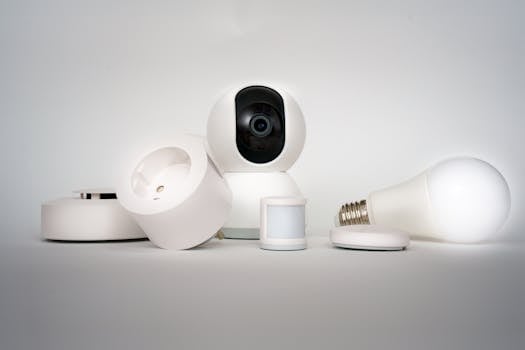
- Smart Bulbs or Smart Plugs: These are light bulbs or plug sockets that connect to your Wi-Fi. You screw in the smart bulb or plug your lamp/fan into the smart plug.
- A Smart Fan or Fan Controller: For fans, you might need a specific smart fan or a device that attaches to your existing fan's wiring.
- Your Smartphone: An Android or iPhone will work just fine.
- A Stable Wi-Fi Network: This is how your phone talks to your devices.
Step-by-Step Guide to Set It Up
Let's break down the process into simple steps.
Step 1: Choose and Set Up Your Smart Devices
Buy smart bulbs (like from Philips Hue, TP-Link Kasa) or smart plugs. Follow the instructions in the box to plug them in or screw them in and get them powered on.
Step 2: Download the Companion App
Each brand has its own app. Go to the Google Play Store or Apple App Store and search for the app. For example, search for "Kasa Smart" or "Hue". Download and install it.
Step 3: Connect Devices to the App
Open the app. It will usually guide you to add a new device. The process typically involves:
- Making sure your phone is connected to your home Wi-Fi.
- Tapping "Add Device" in the app.
- The app will search for new devices. You might have to put your smart bulb/plug into pairing mode (often by turning it on and off a few times).
- Once found, the app will ask you to name it (e.g., "Bedroom Light" or "Study Fan").
1. Open 'SmartLife' or 'Tuya' app.
2. Tap the '+' icon.
3. Select 'Lighting' -> 'Wi-Fi Light'.
4. Follow on-screen prompts to reset your bulb.
5. Connect your phone to the bulb's temporary Wi-Fi network.
6. Return to the app to complete setup.
Step 4: Create Automation and Schedules
This is the fun part! Now that your devices are in the app, you can control them manually with a tap. But to *automate* them:
- Look for a section called Automation, Scenes, or Schedules.
- You can create a rule like: "Turn on Bedroom Light at 7:00 PM every day."
- Or, "Turn off Study Fan when I leave home" (this uses your phone's location).
You can get really creative here. Set a "Good Morning" scene that slowly turns on your lights, or a "Movie Night" scene that dims the lights.
Step 5: Control with Your Voice (Bonus!)
Most smart home systems work with Google Assistant or Amazon Alexa. You can link your app to these assistants. Then you can just say, "Hey Google, turn off the living room light," and it happens! Check your app's settings for "Works With" options.
Tips for a Smooth Experience
- Keep Your Wi-Fi Strong: A good router signal is key. If devices keep disconnecting, check your Wi-Fi coverage.
- Group Devices: In the app, you can group all living room lights together. Then one tap controls all of them.
- Start Small: Don't automate your whole house at once. Start with one light or one fan, get comfortable, then add more.
For more ideas on home automation, you can read about smart home basics for beginners on external sites. If you need to create schedules or lists for your setup, our own Text Editor tool can be handy for notes.
A Simple Automation Example
Imagine you want your porch light to turn on at sunset and off at sunrise. Here’s how that automation might look in a typical app:
IF: Time is Sunset
THEN: Turn ON "Porch Light"
IF: Time is Sunrise
THEN: Turn OFF "Porch Light"
Frequently Asked Questions
📚 Read Next
Do I need a special hub or gateway?
It depends on the devices. Many modern smart plugs and bulbs connect directly to your Wi-Fi and don't need an extra hub. Always check the product description before buying.
Will this work if my internet is down?
Basic manual control might still work if you're on the same Wi-Fi network, but schedules and remote control from outside your home usually require an active internet connection.
Can I use one app for different brands of devices?
Sometimes. Apps like Google Home or Amazon Alexa can combine devices from different brands into one dashboard. Some universal apps like "Smart Life" also support many brands that use the same underlying technology.
Is it safe? Can someone else hack my lights?
Reputable brands use encryption and security measures. To stay safe, always use a strong, unique password for your smart home app account and keep your router's firmware updated. For creating strong passwords, you can use our Password Generator tool.
And that's it! You're now ready to make your home a little smarter. Start with one device, play around with the app, and soon you'll be controlling things without even thinking about it. Happy automating!