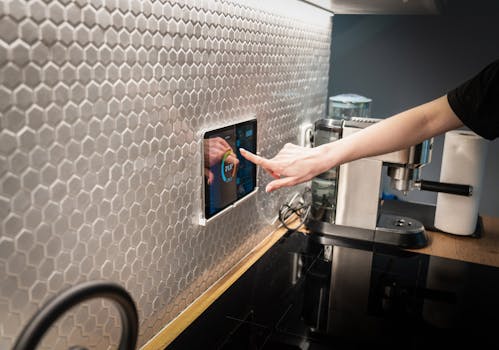
Ever thought about turning off the living room fan from your bedroom, or checking if you left the coffee maker on while you're out? With a WiFi switch, you can do exactly that. It's a simple gadget that lets you control your regular home appliances from your phone, no matter where you are.
Think of it like giving your appliance a remote control that works over the internet. It's a great first step into making your home a bit smarter.
Handy Tools For You
What You'll Need
Getting started is pretty straightforward. Here's what you need:
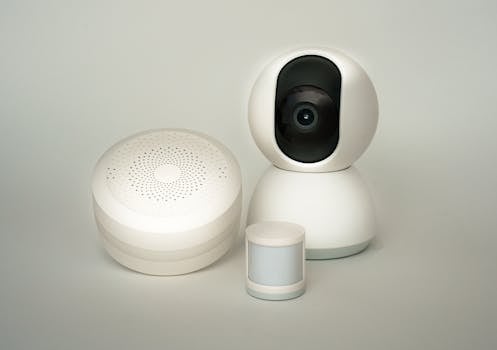
- A WiFi Smart Plug: This is the main device. You plug it into your wall socket, and then you plug your appliance (like a lamp or fan) into it. Make sure the plug's power rating (like 10A or 16A) matches your appliance. You can find good options online from brands like TP-Link or Amazon.
- A Smartphone: You'll use this to set everything up and control the switch.
- A 2.4 GHz WiFi Network: Most smart plugs only connect to the 2.4GHz band of your WiFi, not the 5GHz one. You can usually find this info in your router's settings.
Step-by-Step Setup Guide
Let's get your new switch up and running. Don't worry, it's usually just a few taps.
Step 1: Plug Everything In
First, plug the WiFi switch into your wall outlet. Then, plug your appliance (like a table lamp) into the switch. Turn the appliance's physical power button to the "ON" position. The switch will now have control over it.
Step 2: Download the App
Each brand has its own app. Check the box your switch came in for the app name (e.g., "Kasa Smart" for TP-Link, "Smart Life" or "Tuya Smart" for many generic brands). Download it from the Google Play Store or Apple App Store.
Step 3: Connect the Switch to Your WiFi
Open the app and follow the setup wizard. It will typically ask you to:
- Create an account or log in.
- Press and hold a button on the switch itself until its light starts blinking (this puts it in pairing mode).
- Select your home's 2.4 GHz WiFi network and enter the password.
The app will then connect the switch to your network. This might take a minute.
Step 4: Name Your Appliance and Start Controlling
Once connected, the app will ask you to name your switch. Use something clear like "Bedroom Lamp" or "Study Room Fan".
And that's it! You should now see a power button for your new device in the app. Tap it to turn your appliance on or off from your phone.
// Most apps let you set schedules or routines.
// For example, a schedule to turn on your lamp every day at sunset:

Device: Bedroom Lamp
Action: Turn ON
Schedule: Daily, 6:30 PM

// Or a "Scene" to turn off multiple devices at once:
Scene: "Good Night"
- Action: Turn OFF Bedroom Lamp
- Action: Turn OFF Study Room Fan
- Action: Turn ON Bedside Charger
What Can You Control?
WiFi switches are perfect for appliances that you just need to turn on or off. Here are some common uses:
- Lights & Lamps: Schedule porch lights to come on at dusk.
- Fans & Heaters: Turn them on before you get home so the room is comfortable.
- Coffee Makers: (If it has a simple on/off switch) Start brewing from bed.
- Chargers: Automatically cut power to phone/tablet chargers to save energy.
Important Safety Note: Do not use them with appliances that have complex electronic controls (like most modern ACs, microwaves, or washing machines) unless the manufacturer explicitly says it's safe. Stick to simple on/off devices.
Taking It Further
Once you have one switch working, you might want to explore more. You can often group switches into rooms or create automations that trigger based on time or other devices. For more advanced home automation ideas, you can check out our guide on other smart home tools and setups.
If you're working on a project that involves managing data from smart devices, our JSON Editor can be really helpful for organizing configuration files.
Frequently Asked Questions
📚 Read Next
Does the WiFi switch work if my home internet is down?
Usually, no. Most basic setups require the switch to talk to the app through the internet. If your WiFi router is working but the internet is down, some switches might still work if you're connected to the same home network. For true local control, you might need a different system like Zigbee with a hub.
Can I control the switch with my voice?
Yes, absolutely! Once the switch is set up in its own app (like Kasa Smart), you can usually link that app to Google Assistant or Amazon Alexa. Then you can say, "Hey Google, turn on the bedroom lamp."
Is it safe to use? Will it overload?
It is safe if used correctly. Always check the switch's maximum power rating (e.g., 10A/2200W) and make sure the appliance you plug into it uses less power than that. Don't use it with high-power appliances like water heaters or air conditioners unless the switch is specifically rated for them.
Do I need a separate hub or bridge?
For most standard WiFi smart plugs, no. They connect directly to your home WiFi network. Other technologies like Zigbee or Z-Wave require a separate hub to connect to your network.