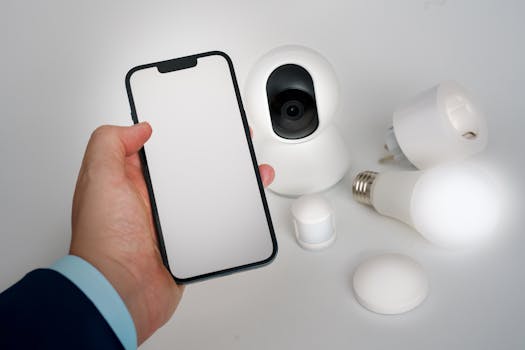
Want to control your lights or fan from your phone? You can build a simple home automation system using an ESP32 board. It's a fun project that connects your appliances to the internet so you can turn them on or off with an app. Let's walk through the main steps.
How It Works
The ESP32 is a small, affordable microcontroller with built-in Wi-Fi. You can program it to act as a tiny web server. When you tap a button in an app on your phone, it sends a signal over your Wi-Fi network to the ESP32, which then flips a switch (using a relay) to control an appliance.
Handy Tools For You
What You'll Need
- An ESP32 development board.
- A 5V relay module.
- Jumper wires and a breadboard.
- A lamp or small fan to control.
- A USB cable to program the ESP32.
- The Arduino IDE software installed on your computer.
Step-by-Step Guide
1. Connect the Hardware
First, let's wire things up safely. Make sure everything is unplugged.
- Connect the ESP32's 3.3V pin to the relay's VCC pin.
- Connect a GND pin on the ESP32 to the relay's GND pin.
- Connect a GPIO pin (like GPIO 23) on the ESP32 to the relay's IN (input) pin.
- Plug your appliance into the relay's output terminals.
Safety Tip: Be very careful when dealing with mains electricity. For your first project, stick to low-voltage devices like a 5V desk lamp.
2. Set Up the ESP32 Code
Open the Arduino IDE. You'll need to write code that makes the ESP32 connect to your Wi-Fi and create a web page with control buttons.
First, install the ESP32 board support in the Arduino IDE via File > Preferences. Then, paste the following basic code. Don't forget to fill in your Wi-Fi details.
#include
// Replace with your network credentials
const char* ssid = "YOUR_WIFI_NAME";
const char* password = "YOUR_WIFI_PASSWORD";
// Set web server port number to 80
WiFiServer server(80);
// Variable to store the HTTP request
String header;
// Auxiliar variables
String output23State = "off";
// Assign output variables to GPIO pins
const int output23 = 23;
void setup() {
Serial.begin(115200);
// Initialize the output variables as outputs
pinMode(output23, OUTPUT);
// Set outputs to LOW
digitalWrite(output23, LOW);
// Connect to Wi-Fi network
Serial.print("Connecting to ");
Serial.println(ssid);
WiFi.begin(ssid, password);
while (WiFi.status() != WL_CONNECTED) {
delay(500);
Serial.print(".");
}
// Print local IP address
Serial.println("");
Serial.println("WiFi connected.");
Serial.println("IP address: ");
Serial.println(WiFi.localIP());
server.begin();
}
void loop(){
WiFiClient client = server.available(); // Listen for incoming clients
if (client) {
String currentLine = "";
while (client.connected()) {
if (client.available()) {
char c = client.read();
header += c;
if (c == '\n') {
// If the line is blank, end of client request
if (currentLine.length() == 0) {
// HTTP headers always start with a response code (e.g., HTTP/1.1 200 OK)
client.println("HTTP/1.1 200 OK");
client.println("Content-type:text/html");
client.println("Connection: close");
client.println();
// Turns the GPIOs on and off
if (header.indexOf("GET /23/on") >= 0) {
Serial.println("GPIO 23 on");
output23State = "on";
digitalWrite(output23, HIGH);
} else if (header.indexOf("GET /23/off") >= 0) {
Serial.println("GPIO 23 off");
output23State = "off";
digitalWrite(output23, LOW);
}
// Display the HTML web page
client.println("");
client.println("");
client.println("");
client.println("");
// Web Page Heading
client.println("ESP32 Web Server
");
// Display current state, and ON/OFF buttons for GPIO 23
client.println("GPIO 23 - State " + output23State + "
");
if (output23State=="off") {
client.println("");
} else {
client.println("");
}
client.println("");
break;
} else {
currentLine = "";
}
} else if (c != '\r') {
currentLine += c;
}
}
}
header = "";
client.stop();
}
} 3. Create the App Interface
Your ESP32 is now a mini web server. The simplest "app" is just a web page. After uploading the code, open the Serial Monitor in the Arduino IDE. It will print the ESP32's IP address (like 192.168.1.105).
Open any web browser on your phone (connected to the same Wi-Fi) and type that IP address. You'll see a page with an ON/OFF button to control your appliance. That's your control app! For a more polished app, you can use platforms like Blynk or MIT App Inventor.
4. Test and Improve
Tap the buttons on the web page. You should hear the relay click and your appliance should turn on or off. If it doesn't work, double-check your wiring and Wi-Fi credentials in the code.
Once it works, you can add more relays to control multiple devices, or use sensors to automate things (like turning lights on when it gets dark). You can also explore other tools on Porexo, like the QR Code Generator to make a QR code that links directly to your ESP32's control page.
Frequently Asked Questions
📚 Read Next
Is the ESP32 safe to use with home appliances?
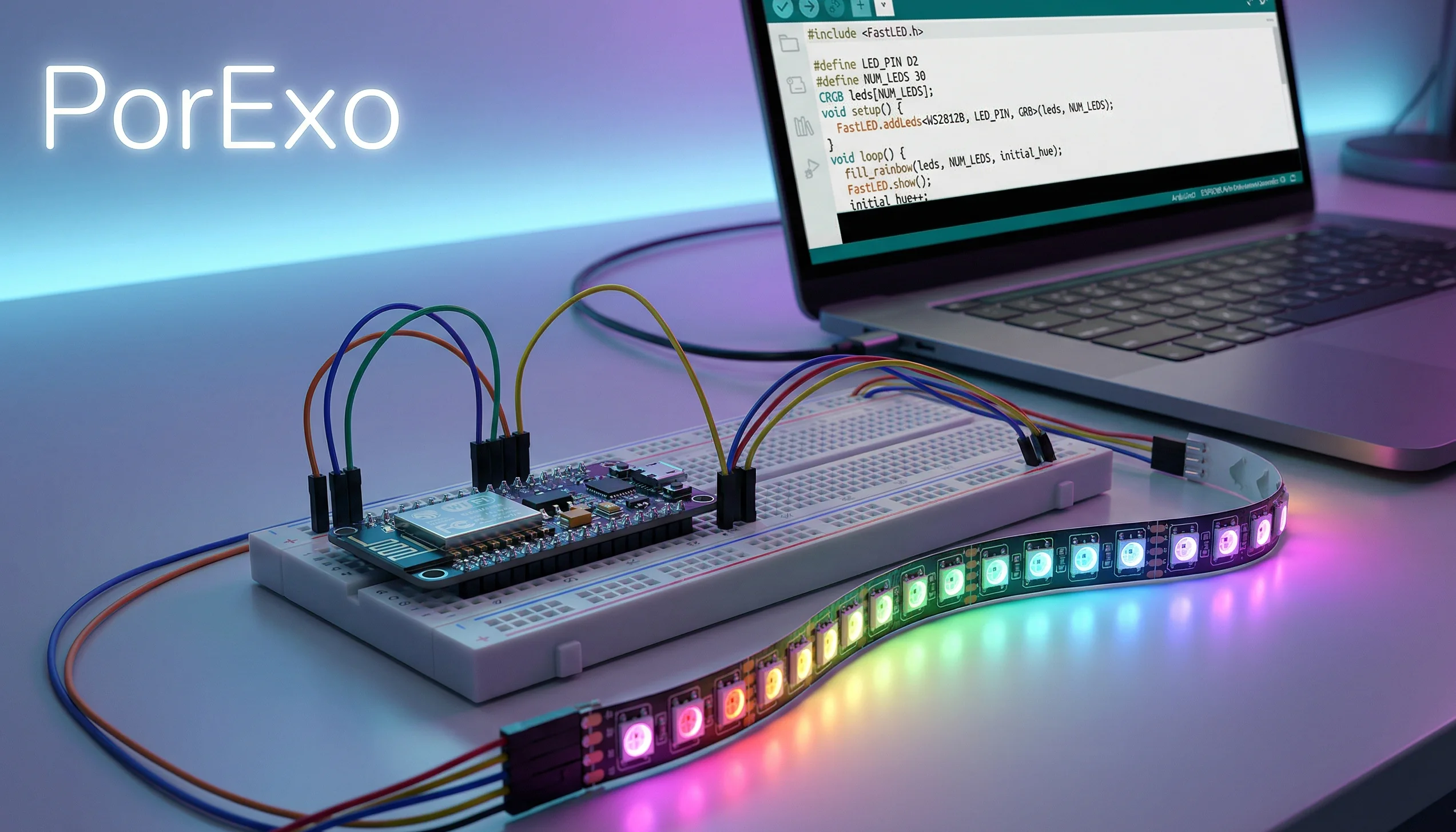
The ESP32 itself is low-voltage and safe. The danger comes from the relay module connecting to mains electricity (like your wall outlet). If you're a beginner, please practice only with low-power, battery-operated devices like a 5V LED strip. When you're ready for mains power, use a properly enclosed relay board and consider consulting someone with experience.
Can I control my devices when I'm not at home?
This basic setup only works when your phone and ESP32 are on the same Wi-Fi network. To control devices from anywhere, you need to set up port forwarding on your router (which has security implications) or use a cloud service like Blynk or Adafruit IO, which handle the remote connection for you.
What's the difference between ESP32 and Arduino for home automation?
An Arduino Uno typically needs an extra shield (like an Ethernet or Wi-Fi module) to connect to the internet. The ESP32 has Wi-Fi and Bluetooth built-in, making it simpler and often cheaper for IoT projects like this one. It's a great choice for beginners in home automation.
Where can I learn more about coding for ESP32?
The official ESP-IDF documentation is the complete resource. For beginners, the Arduino Core for ESP32 (which we used here) has many example libraries and codes that are easier to start with.