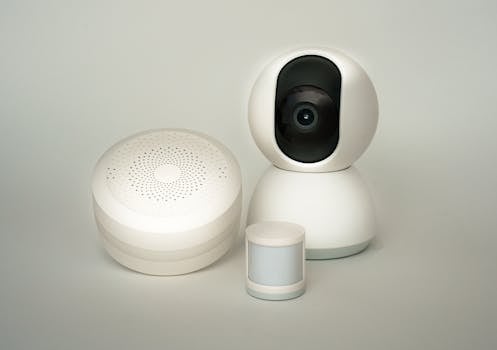
Thinking about adding a camera and motion sensor to your smart home setup? It's a great way to add an extra layer of awareness and security. Let's walk through how to get it working, step by step.
What You'll Need
Before you start, you'll want to gather a few things. The goal is to make sure all your devices can talk to each other.
Handy Tools For You
- A smart camera (like one from Wyze, Ring, or a similar brand).
- A motion sensor (often sold by the same company as your camera or hub).
- A home automation hub or app that supports both devices. Popular choices include Google Home, Apple HomeKit, or Samsung SmartThings.
- A stable Wi-Fi connection.
Step-by-Step Setup Guide
1. Pick the Right Spot for Your Camera
You want your camera to see what's important. Good spots are near the front door, a back patio, or a main hallway. Make sure it's plugged into power (or has charged batteries) and is within range of your Wi-Fi.
2. Place Your Motion Sensor
The motion sensor is your camera's lookout. Put it in a spot where people or pets would walk by, like a hallway entrance or across from a window. Avoid pointing it directly at heat sources or fans, as that can cause false alarms.
3. Connect Everything to Your Hub or App
This is where you make them part of your smart home team. Open your hub's app (like Google Home or the Apple Home app).
- Look for an option like "Add device" or "Set up device."
- Follow the on-screen instructions for your specific camera and sensor. This usually involves scanning a QR code on the device.
- Give each device a clear name, like "Front Door Camera" or "Hallway Motion Sensor." This makes setting up rules much easier later.
4. Create Your Automation Rules (The Fun Part!)
Now, you tell your devices what to do when something happens. This is done through "Automations," "Routines," or "Scenes" in your app.
Here’s a common and useful rule you can create:
WHEN: Hallway Motion Sensor detects motion
AND IF: The time is between 10:00 PM and 6:00 AM
THEN DO:
1. Turn on the Front Door Camera to start recording.
2. Send a notification to my phone.
3. Turn on the porch light for 5 minutes.
You can get creative! Other ideas include having the camera record a short clip when motion is detected, or having a smart speaker announce "Motion detected in the hallway."
Tips for a Smooth Experience
- Test Your Zones: Most camera apps let you draw "motion zones." Use this to tell the camera to only alert you for motion in a specific area, like your driveway, and ignore the busy street.
- Check Your Wi-Fi: A weak signal can cause delays or missed alerts. If a device is far from your router, consider a Wi-Fi extender.
- Start Simple: Begin with one or two basic automations. You can always add more complex rules later once you're comfortable.
For more tools that can help you manage digital tasks, check out our collection of free online tools, like our Image to Text tool for extracting information from pictures.
Frequently Asked Questions
📚 Read Next


Do my camera and motion sensor need to be from the same brand?
Not necessarily, but it often makes setup easier. The most important thing is that both devices are compatible with your chosen home automation hub or app (like Google Home or Apple HomeKit). Check the product specifications before you buy.
Will this work if my internet goes down?
It depends. Most smart cameras and sensors need Wi-Fi to send alerts to your phone. However, some systems have local hubs that can still run basic automations between devices (like turning on a light when motion is sensed) without internet, but you likely won't get remote notifications or video feeds until the connection is restored.
Can I use this to record video all the time?
Many cameras offer a "continuous recording" option, but this usually requires a subscription plan or a local storage card. The motion-triggered recording we set up here is a great, storage-friendly way to only capture important events.
Is this setup difficult for someone who isn't tech-savvy?
Modern smart home devices are designed to be user-friendly. If you can follow instructions in a mobile app and connect to Wi-Fi, you can probably set this up. Take it one step at a time, and don't hesitate to use the manufacturer's support guides or videos.