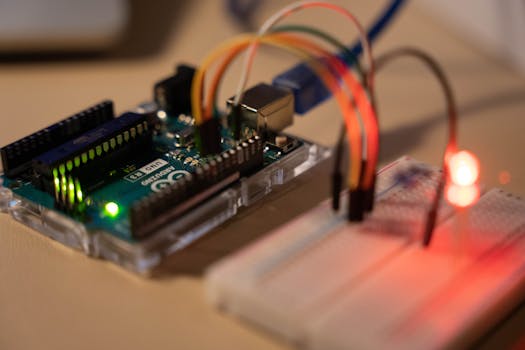
So, you've got a PN532 NFC module and an Arduino, and you're ready to make them talk to each other. That's a great way to start with NFC projects, like reading tags or cards. Let's walk through the main steps in a simple way.
Getting Started
The PN532 is a popular chip for NFC. To use it with an Arduino, you need to connect them, get the right software, and write a bit of code.
Handy Tools For You
How to Connect the Module
You can connect the PN532 to your Arduino using one of two common methods: I2C or SPI. I2C uses fewer wires, which is nice for simpler setups.
Here’s a basic I2C connection guide:
- PN532 SDA → Connect to Arduino A4 (or the SDA pin on other boards).
- PN532 SCL → Connect to Arduino A5 (or the SCL pin).
- PN532 VCC → Connect to Arduino 5V.
- PN532 GND → Connect to Arduino GND.
Always double-check your module's datasheet, as pin labels can sometimes vary.
Installing the Library
Next, you need the right library. The most common one is Adafruit-PN532. You can install it directly from the Arduino IDE:
- Open the Arduino IDE.
- Go to Sketch > Include Library > Manage Libraries....
- In the Library Manager, type "Adafruit PN532" in the search bar.
- Find the library by Adafruit and click Install.
This library handles the communication with the chip, so you don't have to worry about the low-level details.
Writing Your First Sketch
Once the library is installed, you can write code to read an NFC tag. The library comes with examples, which are the best place to start. Here’s a simplified version of what that code looks like:
#include
#include

// Set up the PN532 object for I2C communication
Adafruit_PN532 nfc(0x48); // Use the I2C address of your module

void setup(void) {
  Serial.begin(115200);
  Serial.println("Hello! Looking for PN532...");

  nfc.begin();

  uint32_t versiondata = nfc.getFirmwareVersion();
  if (! versiondata) {
    Serial.print("Didn't find PN53x board");
    while (1); // Halt if no board found
  }
  // Got ok data, print it out!
  Serial.print("Found chip PN5"); Serial.println((versiondata>>24) & 0xFF, HEX);
  Serial.print("Firmware ver. "); Serial.print((versiondata>>16) & 0xFF, DEC);
  Serial.print('.'); Serial.println((versiondata>>8) & 0xFF, DEC);

  // Configure board to read RFID tags
  nfc.SAMConfig();
  Serial.println("Waiting for an NFC card ...");
}

void loop(void) {
  uint8_t success;
  uint8_t uid[] = { 0, 0, 0, 0, 0, 0, 0 };  // Buffer to store the returned UID
  uint8_t uidLength;                        // Length of the UID

  // Wait for an ISO14443A type card (Mifare, etc.)
  success = nfc.readPassiveTargetID(PN532_MIFARE_ISO14443A, uid, &uidLength);

  if (success) {
    // Found a card!
    Serial.println("Found an NFC card!");
    // Print the UID
    Serial.print("UID Length: ");Serial.print(uidLength, DEC);Serial.println(" bytes");
    Serial.print("UID Value: ");
    for (uint8_t i=0; i < uidLength; i++) {
      Serial.print(" 0x");Serial.print(uid[i], HEX);
    }
    Serial.println("");
    // Wait a bit before reading again
    delay(1000);
  }
}
This code initializes the module and then waits in a loop. When you hold an NFC tag near the reader, it will print the tag's unique ID (UID) to the Serial Monitor.
Testing and Next Steps
Upload the sketch to your Arduino and open the Serial Monitor (set to 115200 baud). When you bring a compatible NFC tag close to the PN532 module, you should see the UID printed. If nothing happens, check your wiring and power.
Once reading works, you can explore more, like writing data to tags, emulating a tag, or even connecting the system to other services. For more advanced projects, you might find our QR Code Generator useful for creating complementary visual codes.
Frequently Asked Questions
📚 Read Next



My Arduino isn't detecting the PN532 module. What should I check?
First, verify all your connections are correct and secure. Make sure you are using the correct I2C address in your code (common addresses are 0x48 or 0x24). Also, check that the module is getting power—the LED on it should light up. If you're still stuck, try a different I2C example sketch from the library to rule out a code issue.
Can I use SPI instead of I2C with the PN532?
Absolutely. The PN532 supports SPI, which can be faster. You'll need to connect different pins (like SCK, MOSI, MISO, and SS) and change the initialization in your code to use the SPI interface instead of I2C. The Adafruit library has examples for both methods.
What kind of NFC tags can I read with this?
The PN532 can read common 13.56 MHz tags. This includes ISO/IEC 14443 Type A tags (like Mifare Classic, Ultralight, and NTAG) and Type B tags. Mifare Classic 1K tags are very common and a good choice for beginners. For managing other types of data, you might also like our online Text Editor for quick notes.
Where can I learn more about the PN532 commands and deeper functionality?
The best resource is the official PN532 User Manual from NXP. It's quite technical, but it explains all the chip's capabilities in detail. For simpler, everyday tasks, the Adafruit library documentation and examples are usually all you need.