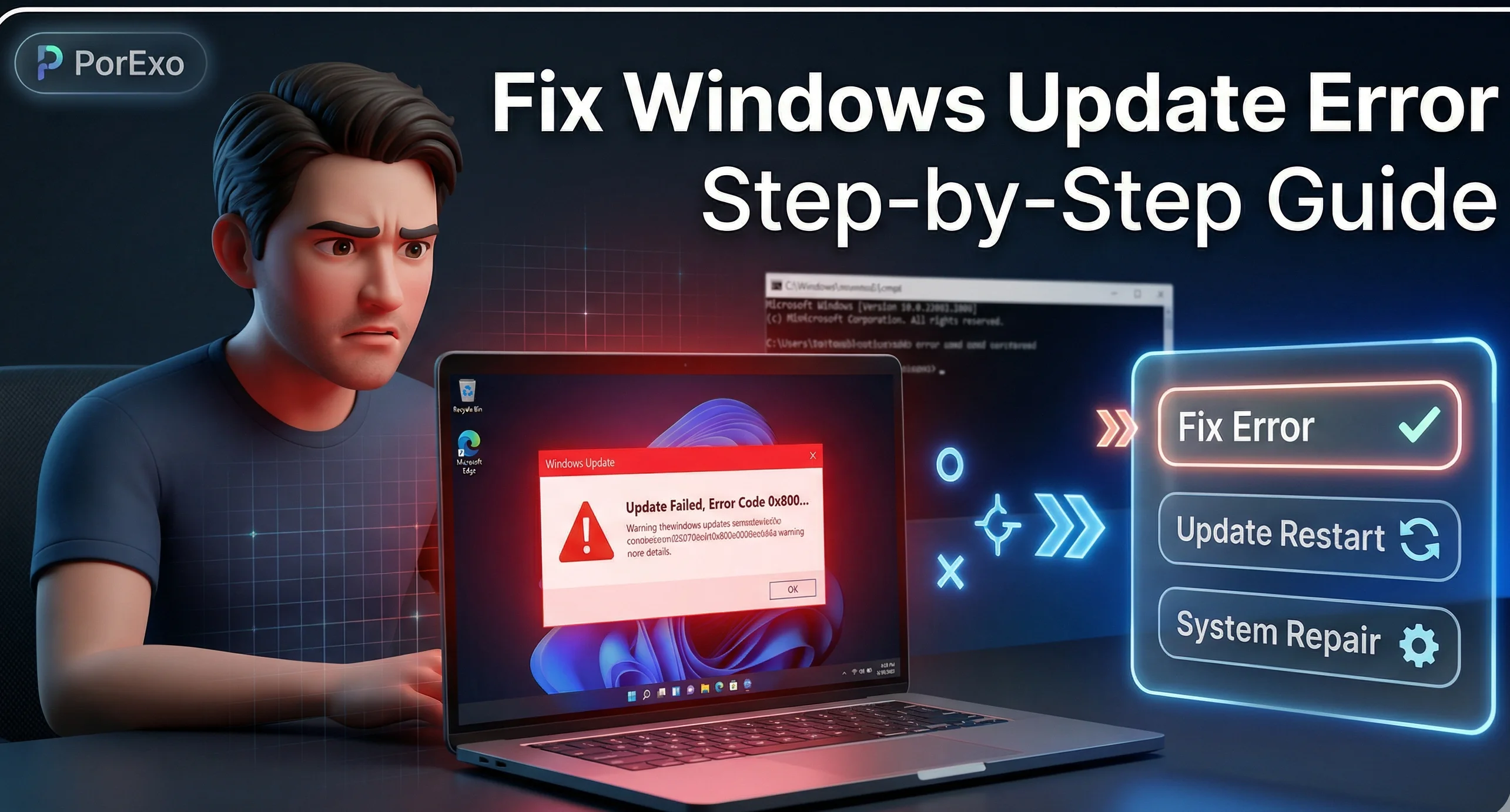
If your Windows PC is running slow, acting buggy, or you just want a fresh start, resetting it can feel like a big step. The biggest worry? Losing all your photos, documents, and other important files. The good news is, Windows has a built-in feature that lets you reset the system while keeping your personal stuff safe. Let's walk through how to do it.
The Simple Steps to Reset and Keep Your Files
Think of this process like giving your PC a clean-up, not a full demolition. It removes apps and settings that might be causing problems but leaves your personal folder untouched.
- Open Settings: Click the Start menu and select the gear icon for Settings.
- Go to Update & Security: In the Settings window, find and click on "Update & Security."
- Choose Recovery: Look for the "Recovery" option in the left-hand menu and click it.
- Start the Reset: Under "Reset this PC," click the "Get started" button.
- The Most Important Step: A blue screen will pop up with two choices. You must select "Keep my files". This is the option that protects your data.
- Follow the Prompts: Windows will show you what apps will be removed. Read through it, then just follow the on-screen instructions to finish the reset. Your PC will restart a few times.
That's it! Once it's done, you'll sign back into Windows. Your desktop, documents, pictures, and other personal files will be right where you left them. However, all the apps you installed from the web or the Microsoft Store will be gone, and your Windows settings will be back to default. You'll need to reinstall your apps.
A Quick Safety Tip
Even though this method is designed to keep your files, it's always a smart move to have a backup. Before you start, copy your most important files to an external hard drive, a USB stick, or a cloud service like Google Drive or OneDrive. Better safe than sorry!
If you need to work with files during this process, like moving photos or documents, you might find tools like our Image Compressor or Compress PDF tool handy for managing file sizes before backing them up.
Frequently Asked Questions
📚 Read Next


Will resetting Windows remove my viruses?
Using the "Keep my files" option can remove many viruses, especially if they are attached to installed programs. However, if a virus is hiding within a personal file you keep, it might survive the reset. For serious infections, a full "Remove everything" reset or a clean install from a USB drive is more effective.
What exactly does "Keep my files" save?
It saves everything in your user folder (C:\Users\[YourName]). This includes Desktop, Documents, Downloads, Pictures, Videos, and Music. It does NOT save installed applications, drivers, or any system settings you changed.
My PC won't start. Can I still do this?
Yes, you can. If Windows won't boot normally, try starting your PC and interrupting the boot process three times in a row to trigger the Automatic Repair screen. From there, go to Troubleshoot > Reset this PC, and you should see the "Keep my files" option.
How long does the reset take?
It usually takes between 30 minutes to a few hours, depending on your PC's speed and how much data needs to be processed. It's best to start when you don't need to use the computer for a while.