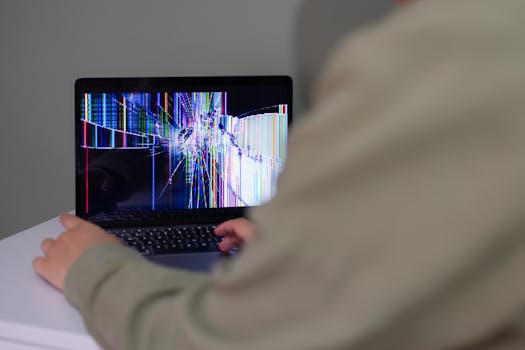
Hey there! If your laptop's webcam has suddenly decided to take a break, don't worry. It's a common problem and usually something you can fix yourself without needing to be a tech expert. Let's walk through the steps together, from the simplest checks to the more involved solutions.
First, Let's Do the Simple Checks
Before we get into anything complicated, let's make sure it's not something easy.
- Is there a physical shutter or switch? Many newer laptops have a little plastic slider or a keyboard key (like F9 or F10) that turns the camera off for privacy. Make sure it's open or switched on.
- Are you using the right app? Try opening the camera in the built-in Windows Camera app. If it works there, the issue might be with the specific app you were using (like Zoom or Teams).
- Did you restart? It sounds too simple, but turning your laptop off and on again fixes more problems than you'd think. Give it a shot.
Step-by-Step Fixes to Try
1. Check Your Privacy Settings
Windows has settings to block apps from using your camera. Let's make sure they're not turned on.
- Click the Start button and go to Settings (the gear icon).
- Go to Privacy & security > Camera.
- Make sure "Camera access" is turned On.
- Scroll down and check that the specific app you're trying to use (e.g., Microsoft Teams, Chrome) is also allowed to use the camera.
2. Update or Reinstall Your Webcam Driver
The "driver" is the software that lets Windows talk to your camera. If it's old or corrupted, the camera won't work.
1. Right-click the Start button, select 'Device Manager'.
2. Find and expand the 'Cameras' or 'Imaging devices' section.
3. Right-click your webcam and select 'Update driver'.
4. Choose 'Search automatically for drivers'.
5. If that doesn't work, right-click again and select 'Uninstall device'. Restart your laptop, and Windows will try to install a fresh driver.
3. Run the Hardware Troubleshooter
Windows has a built-in tool that can find and fix common hardware problems for you.
- Go to Settings > System > Troubleshoot > Other troubleshooters.
- Find Camera and click the Run button next to it.
- Follow the instructions on the screen.
4. Check for Windows Updates
Sometimes, a fix for camera issues is included in a regular Windows update.
- Go to Settings > Windows Update.
- Click Check for updates and install any that are available.
- Restart your laptop after the update.
If You're Still Having Trouble
If none of the above worked, there are a couple of last-resort checks:
- Antivirus/Firewall: Sometimes security software can block the camera. Try temporarily disabling it to see if the camera works (remember to turn it back on!).
- System Restore: If the camera recently stopped working, you can use System Restore to roll your laptop's settings back to a date when it was working. Search for "Create a restore point" in the Start menu to begin.
For more general troubleshooting with device drivers and system settings, you can explore other free online tools that help diagnose PC issues, though they won't directly fix hardware.
Frequently Asked Questions
📚 Read Next



My camera works in the Camera app but not in Zoom. What do I do?
This means the camera itself is fine, but the app doesn't have permission. Go to Windows Settings > Privacy & security > Camera and make sure the toggle for Zoom (or your browser, if using Zoom online) is turned on. Also, check the video settings inside the Zoom app itself to select the correct camera.
I uninstalled the camera driver and now it's gone from Device Manager. How do I get it back?
Don't panic. Restart your laptop. Windows will usually detect the missing hardware and attempt to install a basic driver automatically. After the restart, check Device Manager again under "Cameras". If it's still not there, visit your laptop manufacturer's website, go to the support or drivers section, and download the specific webcam driver for your laptop model.
Could a recent Windows update have broken my webcam?
Yes, it's possible. An update can sometimes cause conflicts with drivers. You can try uninstalling the latest update (go to Settings > Windows Update > Update history > Uninstall updates) or, more safely, use the Driver Rollback feature. In Device Manager, right-click your camera, select Properties, go to the Driver tab, and click Roll Back Driver if the button is available.






