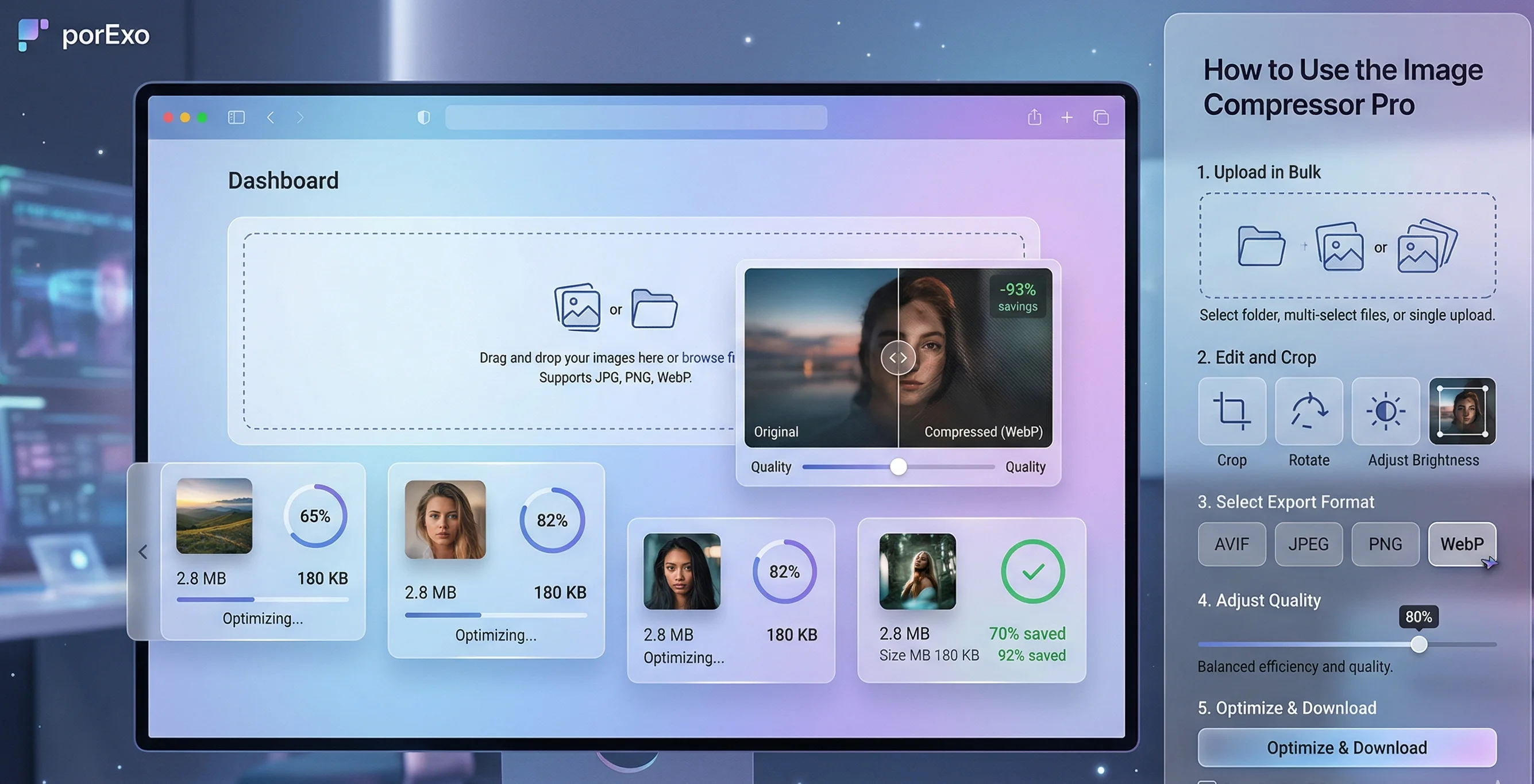
Struggling with slow website load times or "file too large" errors when uploading photos? You don't need expensive software to fix it. Our free online Image Compressor Pro is a powerful, all-in-one tool that lets you reduce image file sizes, crop out unwanted parts, and convert formats right in your browser.
Think of it as the ultimate optimization studio for your pictures. It's lightning-fast, privacy-focused, and handles multiple images at once without breaking a sweat.
Handy Tools For You
How to Use the Image Compressor Pro
We've designed this tool to be incredibly intuitive, even if you are processing dozens of images at once. Here is how to get the best results:
- Upload in Bulk: Drag and drop multiple images (JPG, PNG, WEBP, or GIF) directly into the upload zone, or click to select files from your device.
- Edit and Crop (Optional): Hover over any uploaded image and click the Edit icon. Our professional editor lets you crop, rotate, and frame your image perfectly before compressing.
- Select Export Format: Choose your desired output from the left panel. We highly recommend WebP for the best balance of high quality and incredibly small file sizes.
- Adjust Quality: Use the Quality Control slider. A setting of 80% usually provides massive file size reductions with zero visible loss in quality.
- Optimize & Download: Click the "Optimize All" button to process your queue. You can download images individually or hit Download ZIP to grab them all in one click!
Why is Image Compression Important?
Unoptimized images are the number one cause of slow websites and bloated storage. Here is why you should always compress your photos:
- Faster Websites & Better SEO: Google loves fast websites. Smaller images mean pages load instantly, which boosts your search engine rankings and keeps your visitors happy.
- Save Storage Space: Whether it's your phone, cloud storage, or a web hosting server, compressed images take up a fraction of the space.
- Easier Sharing: Email clients and messaging apps often block huge attachments. Compressing files ensures they send quickly and smoothly.
If you need to change the physical dimensions (width and height) of a picture rather than just reducing the file size, use our dedicated Image Resizer Tool.
Understanding Image Formats
Choosing the right format is half the battle in image optimization. Here is a quick cheat sheet:
JPG/JPEG: The universal format. Best for complex photographs. Uses "lossy" compression (drops unnoticeable color data to save space).
PNG: Best for graphics, logos, and images needing a transparent background. Uses "lossless" compression (larger file sizes, but perfect crisp quality).
If you ever receive a HEIC image from an iPhone and need to use it elsewhere, our HEIC to JPG converter can be very handy.
Pro Tips for the Best Compression
- WebP is King: Always convert to WebP if your images are destined for a blog or website. All modern browsers fully support it.
- Don't Over-Compress: Pushing the quality slider below 50% might cause "artifacts" (blocky, blurry areas in the photo). 75% to 85% is usually the sweet spot.
- Crop First: If you are going to crop the image anyway, do it before compressing using our built-in editor. Cropping removes physical pixels, which automatically reduces the file size right away!
Frequently Asked Questions
Is it safe to compress private or sensitive images here?
100% Yes. Unlike many other tools, this compressor processes all images locally inside your web browser. Your files are never uploaded to our servers, ensuring total privacy and security.
What is the difference between Lossy and Lossless compression?
Lossy compression (like standard JPG) permanently removes some data to drastically reduce file size. Lossless compression (like PNG) rewrites the data more efficiently without removing any pixels, keeping perfect quality but resulting in larger files.
Can I compress images on my mobile phone?
Yes! Our Image Compressor Pro is fully responsive and works perfectly on Android and iOS browsers. Just tap the upload box to select photos directly from your phone's camera gallery.
Why are my compressed images still too large?
If the file size is still huge after compression, the physical dimensions (like 4000x3000 pixels from a modern smartphone camera) might simply be too large. Try using our built-in cropper to cut out empty space, or use an Image Resizer to scale the dimensions down before compressing.