PDFs are everywhere—from bank statements to work documents. They're great because they look the same on any device. But sometimes, you need to do more than just open and read them. Let's look at some simple, practical ways to handle PDF files.
1. Opening and Reading PDFs
To simply view a PDF, you don't need fancy software. Most computers and phones have a built-in viewer.
Handy Tools For You
- On Windows/Mac: Your web browser (like Chrome or Edge) can open PDFs directly. Just double-click the file.
- Dedicated Software: For more features like adding comments or filling forms, Adobe Acrobat Reader DC is a free and reliable choice.
2. Making Basic Changes
Need to merge, split, or compress a PDF? You don't have to buy expensive software. Many free online tools can do this quickly.
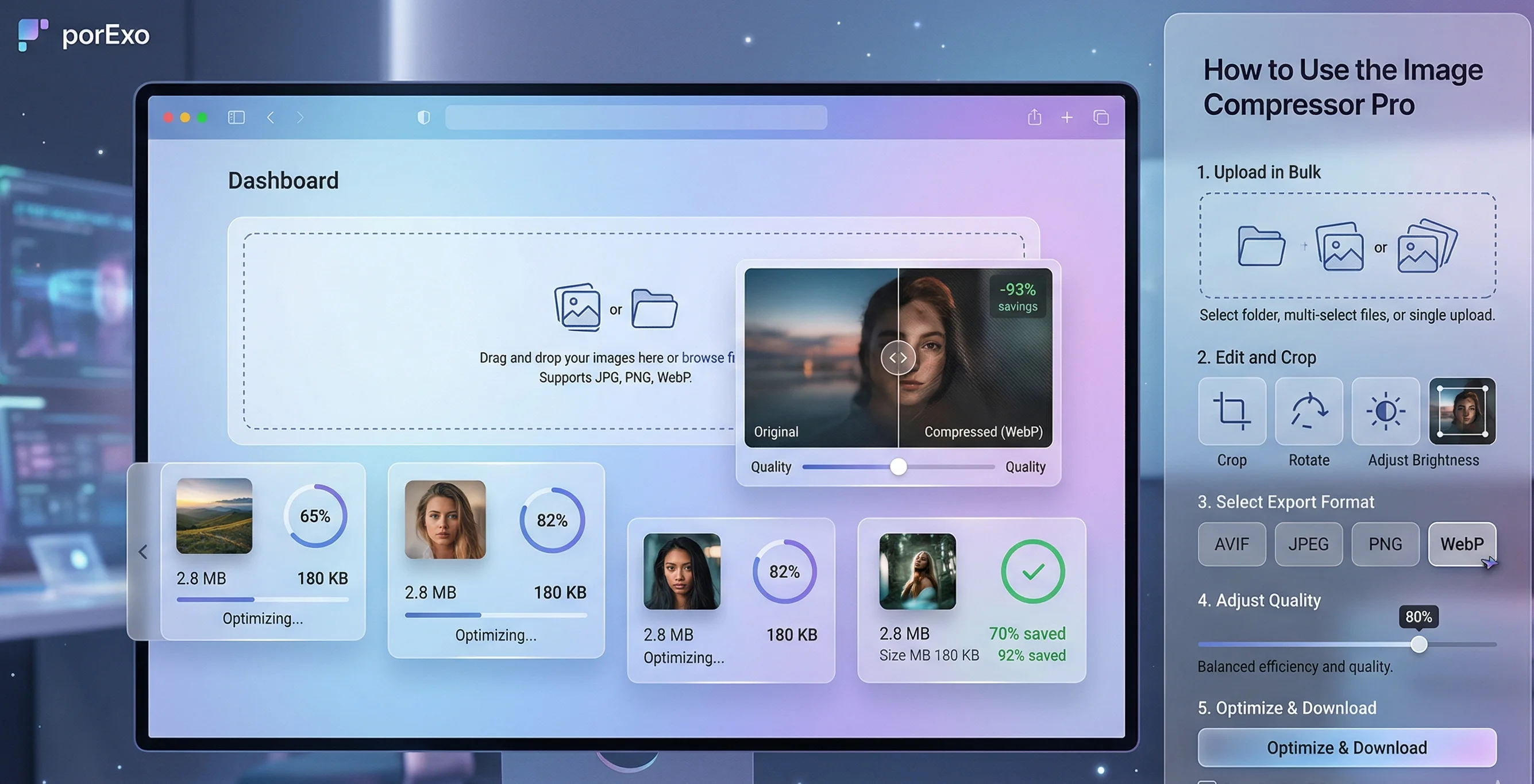
For example, you can use our own Compress PDF tool to reduce file size, or the Remove PDF Pages tool to delete pages. These run right in your browser.
Another popular free tool is Smallpdf, which offers a wide range of editing functions online.
3. Keeping Your PDFs Safe and Organized
- Use Cloud Storage: Save important PDFs to services like Google Drive or Dropbox. This lets you access them from anywhere and acts as a backup.
- Add a Password: If a PDF contains private information (like a contract or tax document), you should protect it. You can use our Protect PDF tool to add a password lock. Only people with the password will be able to open it.
- Add a Digital Signature: For official documents, you might need to sign them. You can create a signature image using our Digital Signature Generator and then add it to your PDF.
4. Converting To and From PDF
Sometimes you need to change a PDF into a different format to edit the text, or create a PDF from another file type.
- PDF to Other Formats: Convert a PDF to Word, Excel, or images to make edits. Try our PDF to Excel or PDF to JPG tools.
- Other Formats to PDF: Need to send a report or image as a PDF? You can convert files like JPG, PNG, or Excel sheets. Our Image to PDF and Excel to PDF converters make this easy.
Working with PDFs doesn't have to be complicated. Start with the simple tools built into your device, and use free online tools for specific tasks like editing or converting. Remember to keep your sensitive documents password-protected.
For more helpful utilities, check out our full list of free online tools.
Frequently Asked Questions
📚 Read Next



What's the easiest way to edit text in a PDF?
If you only need to make small text changes, the best way is to convert the PDF to a Word document using an online converter, edit it in Word, and then save it back as a PDF. For simple annotations like highlights or comments, Adobe Acrobat Reader's free tools work well.
Are online PDF tools safe to use with confidential documents?
You should be careful. Always check the privacy policy of the website. Many reputable tools, including ours at Porexo, process your files securely in your browser and do not store them on their servers after you close the page. For highly sensitive documents, it's safest to use installed software on your own computer.
How can I reduce the size of a large PDF to email it?
Use a compression tool. Our Compress PDF tool can significantly reduce file size while keeping the quality readable. This is perfect for sending via email or messaging apps.
Can I work with PDFs on my phone?
Absolutely! Most smartphones can open PDFs in their file manager or email app. For more advanced tasks like merging or signing, you can use mobile-friendly websites like Porexo's tools or download apps like Adobe Acrobat Reader for mobile.