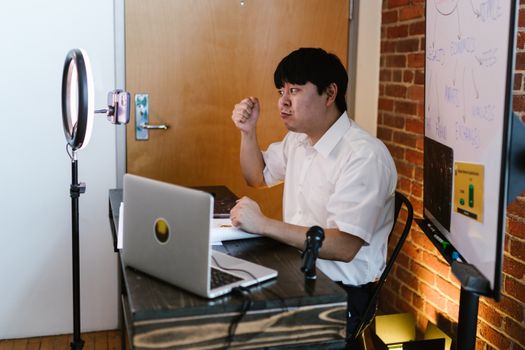
Hey there! Setting up the webcam on your laptop is usually pretty straightforward. Let's walk through it together, step by step.
First, you'll want to find and open the camera app that came with your laptop. On Windows, you can just type "Camera" in the search bar next to the Start menu. On a Mac, look for "Photo Booth" in your Applications folder.
Once the app is open, you should see yourself! This is a good sign—it means the hardware is connected. Now, let's make sure you look your best.
Getting Your Settings Just Right
- Open the camera app: This is always the first step to check if your camera is working.
- Tweak the image: Look for a settings or gear icon. Here, you can often adjust things like brightness, contrast, and sometimes even zoom to get a clearer picture.
- Do a quick test: Record a short 5-second video or take a photo. Play it back to make sure the picture and sound (if your webcam has a mic) are clear.
- Jump into a call: The final test is to use it in your favorite video chat app, like Zoom, Google Meet, or Microsoft Teams. Join a test meeting to see how it performs in real-time.
If your camera app doesn't open or shows a black screen, don't worry. The most common fix is to check your privacy settings. Your computer might be blocking apps from using the camera.
On Windows, go to Settings > Privacy & security > Camera and make sure "Camera access" is turned on. On a Mac, check System Settings > Privacy & Security > Camera.
Frequently Asked Questions
📚 Read Next



My camera shows a black screen. What should I do?
First, check the physical camera on your laptop—make sure there's no sticker or cover over the lens. Then, go to your system's privacy settings (as mentioned above) and allow camera access for the app you're trying to use. Restarting your laptop can also help reset the connection.
How do I make my webcam video quality better?
Good lighting is the easiest fix! Sit facing a window or use a desk lamp. In your camera app's settings, you can often adjust exposure or turn on features like "HDR" for a better image. For more advanced editing, you might try a dedicated photo editor tool to touch up images after the fact.
Can I use an external webcam on my laptop?
Absolutely. Just plug a USB webcam into your laptop's port. Your laptop should recognize it automatically. You might then need to select it as the preferred camera in your video app's settings (look for a camera icon or a dropdown menu).
And that's it! You're all set for your next video call, online class, or virtual catch-up with friends. If you're creating content, you might also find tools like our image-to-text converter handy for pulling text from screenshots, or our background remover to clean up your video backdrop.






