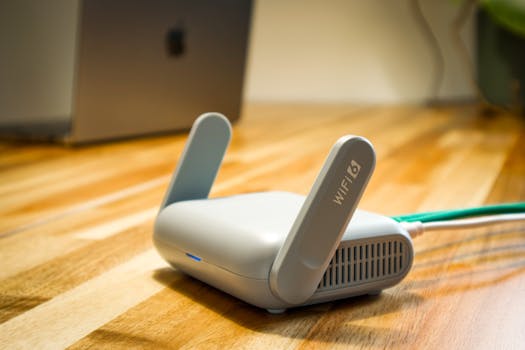
Hey there! So you've got a Tenda router and need to get into its settings. Maybe you want to change the Wi-Fi password, check who's connected, or set up something new. Don't worry, it's a pretty simple process. Let's walk through it step-by-step, just like I would show a friend.
What You'll Need Before You Start
Before you begin, make sure you have these two things ready:
- Your computer, phone, or tablet.
- An Ethernet cable (optional, but useful if Wi-Fi isn't working).
It's best to do this from a device that is already connected to your Tenda router's network, either by Wi-Fi or with a cable.
Step-by-Step Login Guide
Here’s exactly what you need to do to reach your router's admin page.
Step 1: Connect to Your Router's Network
First, make sure your device is connected to the Wi-Fi network that your Tenda router is broadcasting. If you haven't set up Wi-Fi yet, or if it's not working, you can connect your computer directly to the router using an Ethernet cable (it usually comes in the box).
Step 2: Open Your Web Browser
Open any web browser you like—Chrome, Firefox, Safari, or Edge. It doesn't matter which one.
Step 3: Enter the Router's IP Address
This is the most important step. In the browser's address bar (the top bar where you usually type website names like google.com), type in the following address and press Enter:
http://192.168.0.1Note: For most Tenda routers, 192.168.0.1 is the correct address. If this doesn't work for some reason, you can try 192.168.1.1 or tendawifi.com. You can also find the correct IP address printed on a label at the bottom or back of your router.
Step 4: Enter the Login Credentials
After pressing Enter, a login box will pop up asking for a username and password.
- Default Username:
admin - Default Password:
admin
Type these in and click 'Login' or 'OK'.
Username: admin
Password: admin
Important: If you (or someone else) have changed this password in the past and you don't remember it, you'll need to reset your Tenda router to its factory settings. This will erase all your custom settings, so it's a last resort.
Step 5: You're In!
That's it! You should now see the main dashboard or settings page for your Tenda router. From here, you can change your Wi-Fi name (SSID), set a new password, manage connected devices, and configure parental controls.
What If It Doesn't Work?
Sometimes things don't go as planned. Here are quick fixes for common problems:
- Page won't load? Double-check your connection to the router's network. Try using the Ethernet cable.
- IP address doesn't work? Check the label on your router for the correct admin address or gateway IP.
- Login failed? The default password might have been changed. You'll need to reset the router.
Frequently Asked Questions
📚 Read Next




What is the default IP for Tenda router login?
The most common default IP address is 192.168.0.1. Alternatives are 192.168.1.1 or the web address tendawifi.com.
What is the default Tenda admin password?
For most models, the default username and password are both admin. Always check your router's manual or label to confirm.
I forgot my custom password. What do I do?
You will need to perform a factory reset. There's usually a small "Reset" button on the router. Press and hold it for about 10 seconds with a paperclip until the lights blink. This will restore the default password (admin) but also erase all your settings.
Can I change my router's login password?
Yes, and you should! Once logged in, look for a section called "System Tools," "Administration," or "Management." There you can change the admin password to something strong and unique. For creating strong passwords, you can use our free Password Generator tool.
Is it safe to access the router from my phone?
Yes, it's perfectly safe. Just make sure you are connected to your home Wi-Fi network and follow the same steps in your phone's web browser (like Chrome or Safari).
Need More Help with Your Tech?
Configuring a router is just one small tech task. If you're working on a project that involves converting files or editing text, check out some of our other simple tools that can help:
- Edit and format data easily with our CSV Editor.
- Convert your CSV files for the web using the CSV to HTML Converter.
- Work with code or configuration files in our JSON Editor or XML Editor.
Happy configuring! Once you're logged in, you have full control over your home network. Take your time exploring the settings.